Tearsheet Studio / Google Sheets to report
Turn a Google Sheet into a report or PDF
Google Sheets is great for collecting numbers and less good at presenting them: charts need manual formatting, and the PDF export is just the grid. Here's a faster route from a sheet to a report you can send.
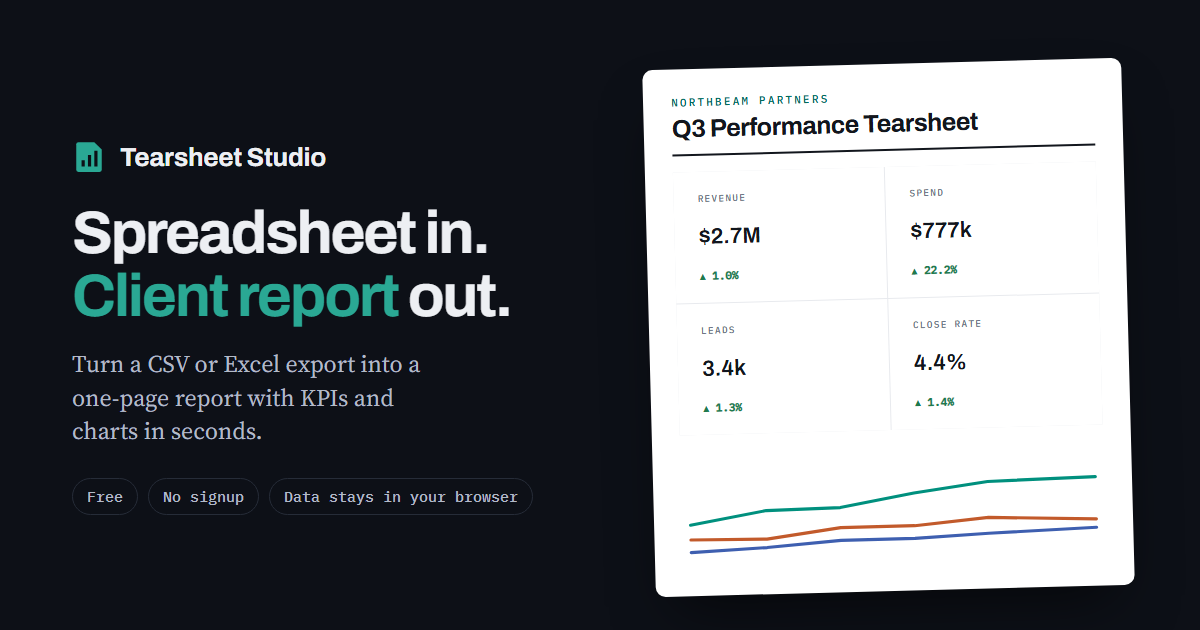
From sheet to report
- Download the sheetIn Google Sheets, choose File → Download → Microsoft Excel (.xlsx) to keep every tab, or Comma-separated values (.csv) for the current tab only.
- Import it hereOpen the file. For an XLSX with several tabs, pick the one you want and confirm the header row.
- Build and exportChoose the headline figures and charts, then export a PDF, a PNG or a self-contained HTML file.
Why download instead of connecting?
There's no live connection by design. The app never asks for access to your Google account, and the sheet's data is read on your own computer. The trade-off is that you download again when the numbers change. Save your layout as a template and each update is a single import.
Prepare the sheet first
- One header row with plain column names
- Dates formatted as dates, not text
- No merged cells inside the data
- Remove total rows: the report adds everything up itself, so a total row would be counted twice
Questions
Does it connect to my Google account?
No. You download the sheet and open the file. No sign-in and no permissions are involved.
What if my sheet has several tabs?
Download it as XLSX and pick the tab when you import it. One tab is used per report.
Are formulas kept?
Google's export contains each formula's calculated value, and that's what the report uses.
Is my data uploaded anywhere?
Your file is read inside your browser tab. It is never uploaded, so there is nothing to delete afterwards.