Tearsheet Studio / XLSX to PDF
XLSX to PDF, formatted as a report
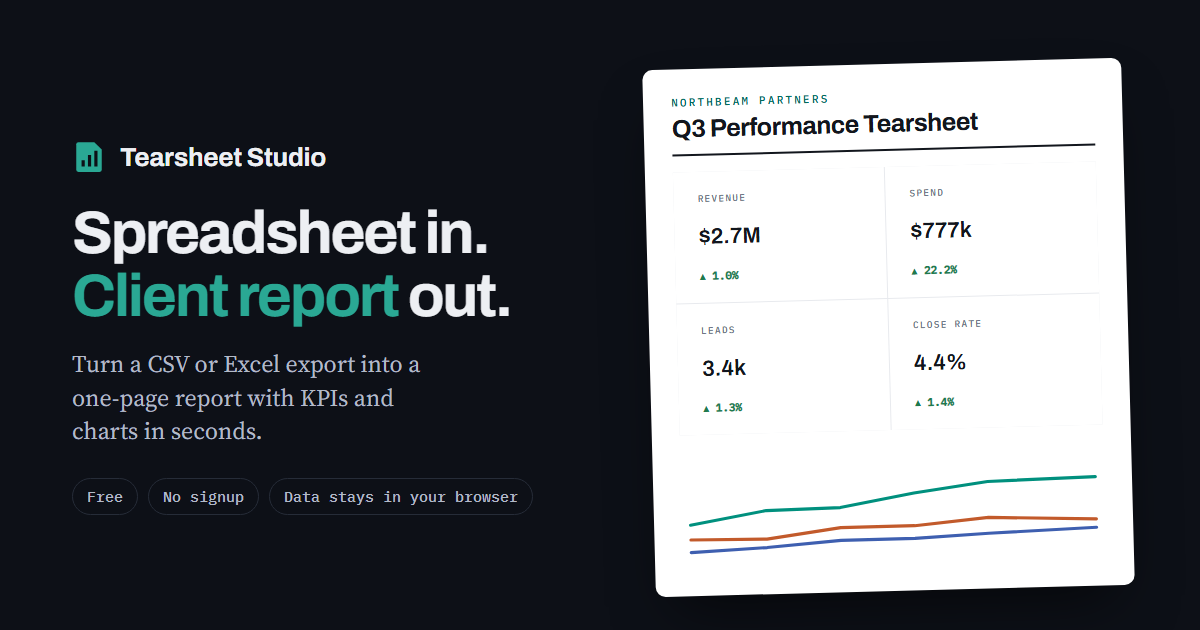
Excel's own Save as PDF gives you whatever the print area happens to be: cut-off columns, and charts split across pages. Here you pick the sheet, and the PDF comes out as a designed one-page report.
How to convert
- Open your workbookXLSX and older XLS files up to 25 MB. If the workbook has several sheets, pick the one to use.
- Point at the dataChoose which row holds the column names, so title rows and notes above the table are skipped. You see a preview before anything is built.
- Save as PDFFrame the report, then go to Export → Print / Save as PDF and choose “Save as PDF” as the destination.
Things Excel users ask about
- Formulas: the saved result of each formula is used, so recalculate and save the workbook before exporting
- Dates stored as Excel dates are recognised as dates, not as numbers
- Title rows, merged headers and notes above the table are skipped by choosing the header row
- One worksheet per report. Combine sheets in Excel first if you need them together
A PDF that survives page breaks
Charts and headline figures are never split across pages. A section that won't fit moves to the next page whole, and long tables repeat their header row. The browser doesn't print its address or the file name in the margins.
Questions
Do I need Excel installed?
No. The file is read in your browser. It also works with sheets exported from Google Sheets or Numbers.
Is my workbook uploaded?
Your file is read inside your browser tab. It is never uploaded, so there is nothing to delete afterwards.
Can I use a Google Sheet?
Yes. In Google Sheets, choose File → Download → Microsoft Excel (.xlsx) or CSV, then open that file here.
Why do some numbers look different from Excel?
Excel may be showing rounded or formatted values. The report reads the stored values, and you can change how a column is typed in the data preview.